
FAQ
- Route planning
-
Completed routes
- How can I mark a route as completed?
- Import and export GPX files of completed routes
- How to mark a peak as summited?
- How to check how much remains to the destination?
- I forgot to stop recording my route
- The recorded route is inaccurate and contains straight lines
- My completed routes disappeared after changing my phone or reinstalling the app
- Offline maps
- Premium version and purchases
How to add any point on the map to a planned route?
To add a point to a planned route, tap the desired location on the map and then tap  .
.
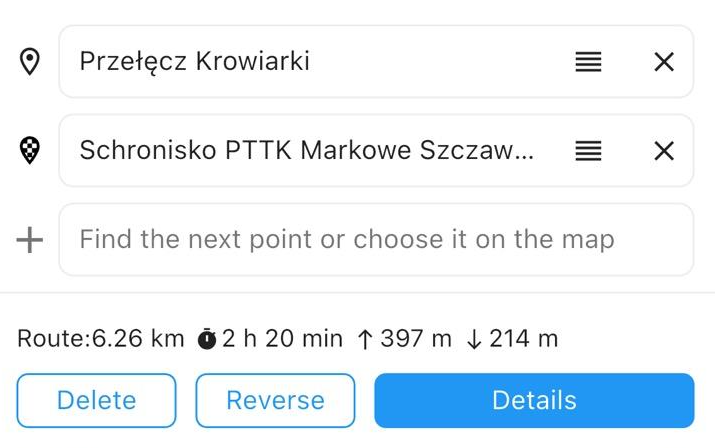
How to save a planned route?
Plan the route, tap Details, and then tap Save to planned.

I have planned a route, how can I open it?
In the map view, tap  to open the planned routes screen.
Import and export GPX files of planned routes
You can import and export GPX files of planned routes. To open planned routes, tap the icon on the map screen.
If you want to import a GPX file, tap the button at the top of the screen.
If you want to export a route to a GPX file, tap the  icon next to the selected route and choose Export GPX.
How to add and remove favourite points?
Active points on the map (displayed as white circles) can be added to favourites. To do this, tap the point name and then select Add to favourites.
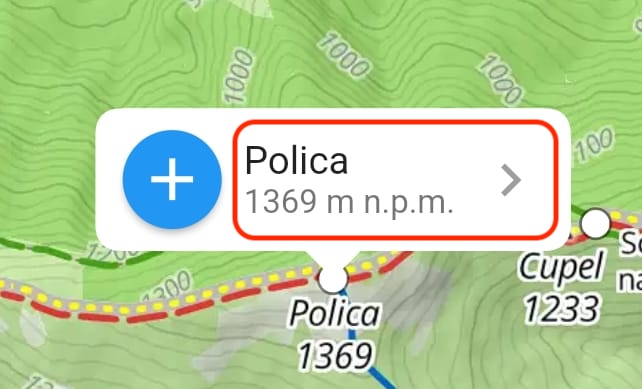

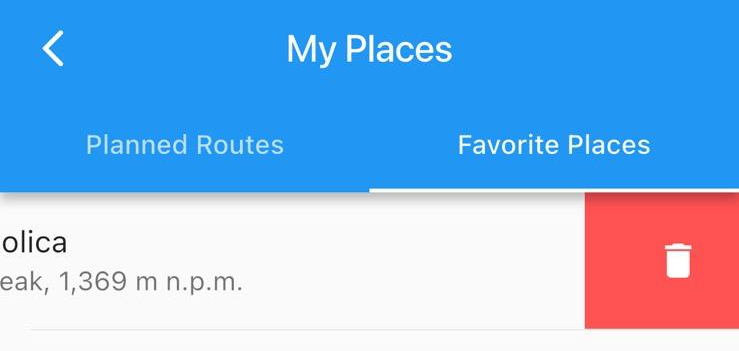
To open the list of favourite places, in the map view tap and go to the Favourite places tab.
To remove a favourite place, swipe the point you want to remove to the left.
How can I mark a route as completed?
Plan the route, tap Details, and then tap Save as completed.

Import and export GPX files of completed routes
You can import and export GPX files of completed routes. To do this, go to the Profile tab.
If you want to import a GPX file, tap the button at the top of the screen and select Import GPX.
If you want to export a route to a GPX file, tap the icon next to the selected route and select Export GPX.
How to mark a peak as summited?
Summited peaks are marked automatically based on recorded tracks, routes marked as completed or imported routes.
The app uses a tolerance of 100 meters from the peak, within which the peak is considered summited. The exception is higher mountain areas above 1800 m above sea level, where the tolerance is 30 meters.
There are also exceptions to these values for some peaks belonging to challenges (so-called mountain crowns). Some of them are located outside marked trails, or sometimes no path leading to them exists on maps. In such cases, an increased tolerance is used to allow the peak to be recognized as summited from the position of the nearest trail or another path.
If you completed a route and recorded it, but the peak was not marked as summited according to the rules described above, first check whether there were any problems with route recording. The app does not allow editing the recorded route. In this case, use the mark route as completed feature.
How to check how much remains to the destination?
When you have planned a route and are currently following it, you can track the remaining time, distance, and elevation gain to your destination.
Go to the recording screen.

At the top of the screen, you will see information about how much remains to the destination.

Tap the blue information bar to see more details.
I forgot to stop recording my route
If you forgot to stop recording, you can use the route trimming feature. Go to the Profile tab, tap the icon next to the selected route and select Trim.
The recorded route is inaccurate and contains straight lines
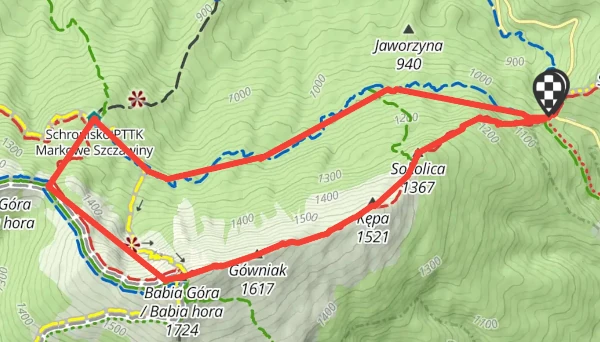
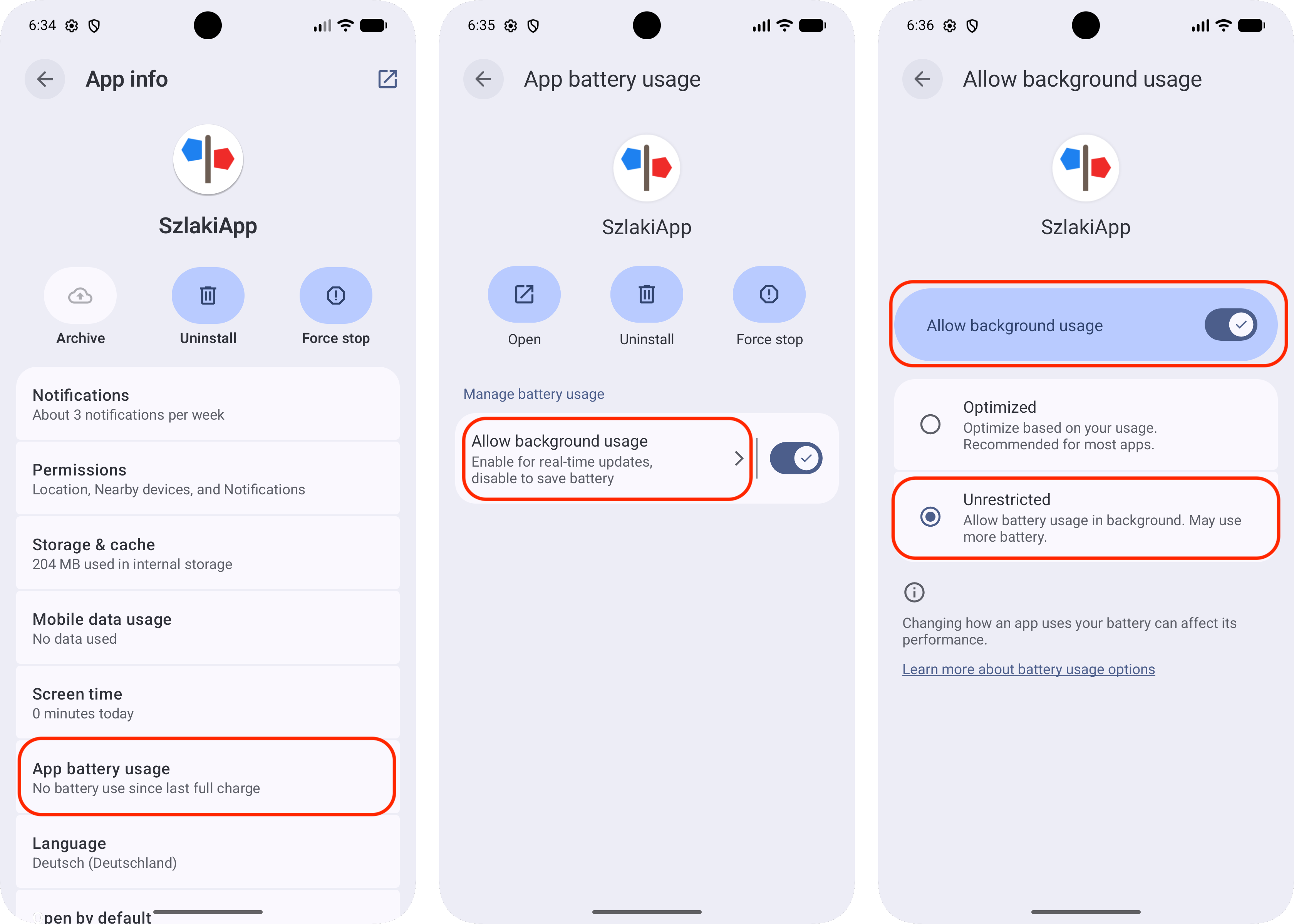
The most common cause of route recording problems is the way the operating system manages power consumption. By default, the system may close the app while recording a route. To prevent this, allow the Szlaki app to run in the background in the battery management settings.
Straight lines in a recorded route can also be caused by enabling global power saving mode on your phone. This results in less frequent GPS position updates.
iOS
Check that Low Power Mode is not enabled: Settings > Battery > Low Power Mode. If it is enabled, turn it off.
Android
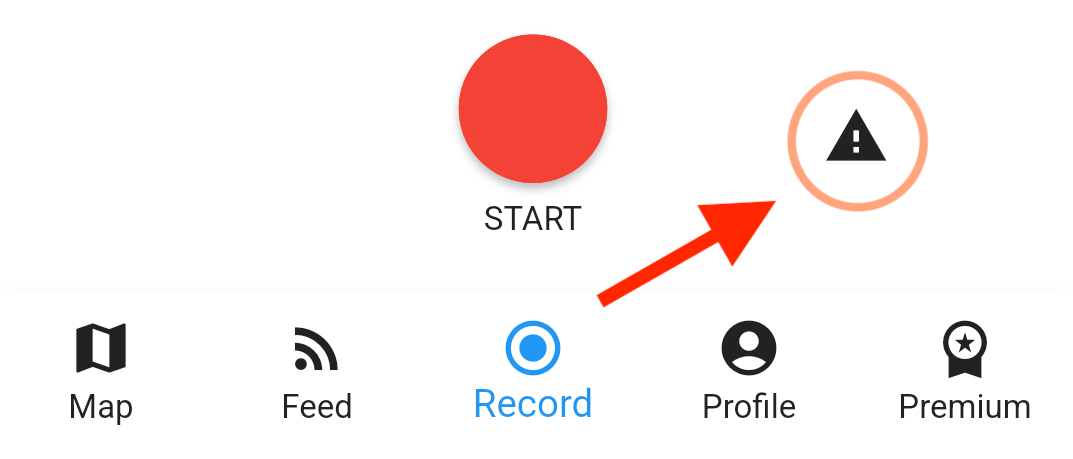
In the Szlaki app, go to the Record screen and tap the exclamation mark icon. You will see further instructions there.
Below are example battery saving settings in Android 17. Depending on the manufacturer's system interface (e.g. Samsung, Xiaomi, Huawei, etc.), these settings may look different.
Also check that battery saving mode is not enabled: Settings > Battery > Battery Saver. If it is enabled, turn it off.
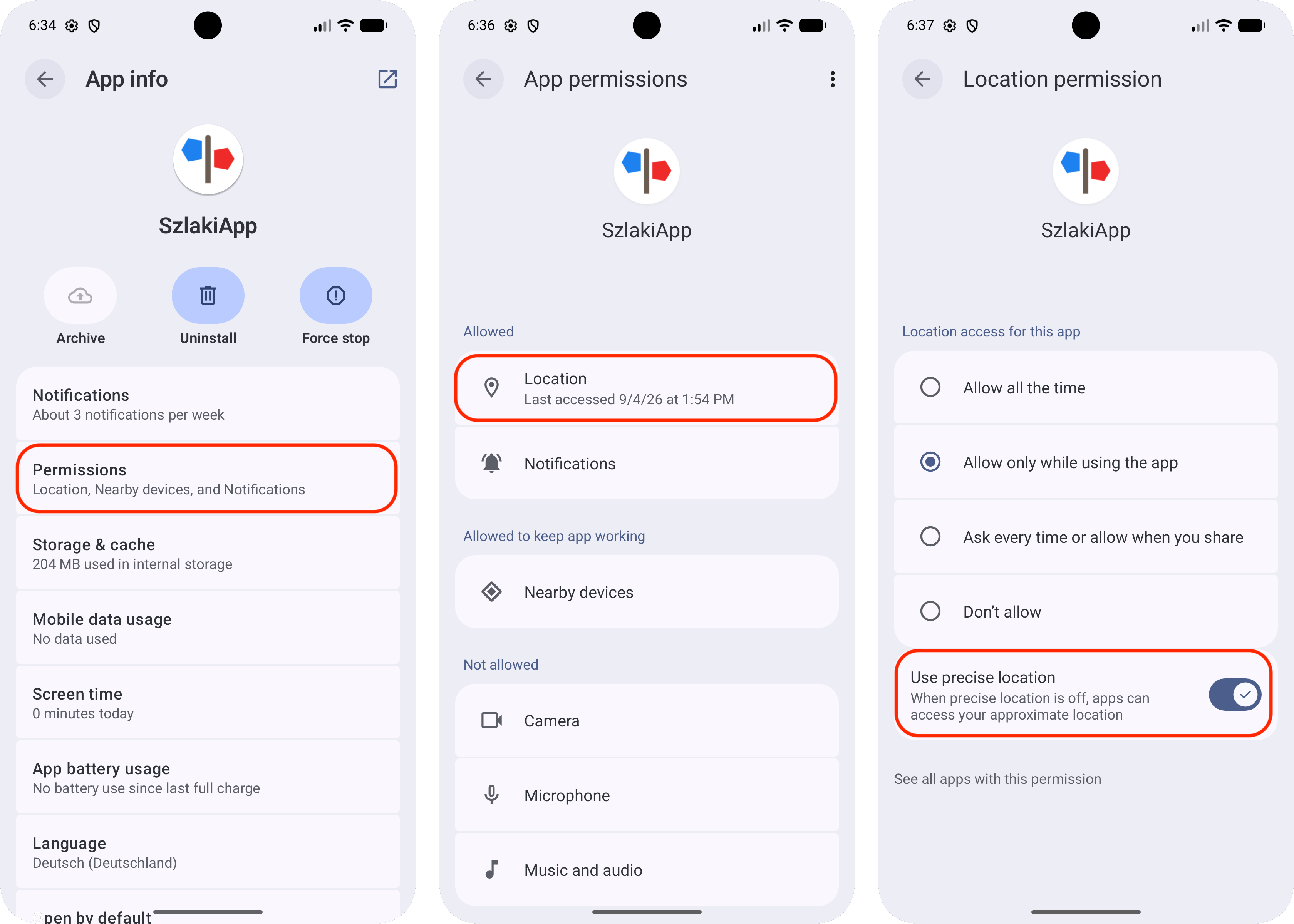
Make sure the app has access to precise location. Example location permission settings in Android 15 are shown below.
My completed routes disappeared after changing my phone or reinstalling the app
Most likely, you logged in to a different account. The Szlaki app supports the following login methods:
- email / password
- Facebook account login
- Google account login
- Apple account login
The unique user identifier in the Szlaki app is the email address. If you use email / password login, make sure you enter the same credentials.
When you log in using Facebook, Google, or Apple, these services provide us with your email address. If the email address matches an existing account, you will be logged in to that account. Otherwise, a new account will be created in the Szlaki app.
Example: Initially, you created an account in the app using an email address and password. When changing your phone or reinstalling the app, you log in using your Facebook account. If your Facebook account has the same email address as the one you originally used to create your Szlaki account, you will be logged in to your previous account. However, if the email address in Facebook was different, a completely new account will be created in the Szlaki app.
Apple login has an additional option to hide your email address. If you choose this option, we will not be able to associate another account created using a different login method.
How to download offline maps?
Offline maps require the Premium version.
Downloaded maps take up a lot of space on your phone, so we recommend downloading only the areas you are interested in.
To do this, plan a route or zoom in to the area where you are planning your hike and tap the offline maps download button  . Tap Add offline area and then select the area you want to download on the map.
Can I plan routes and search for map points while offline?
No. Even if you have downloaded offline maps, you cannot plan routes or search for points on the map in the app without an internet connection.
Can I pay for a Premium subscription with BLIK?
Not directly, but you can do it by topping up your account balance. Premium subscriptions renew automatically every month (or year) to provide continuous access to services. This model requires a payment method that has been authorized once (e.g. a payment card), and payments are then charged automatically. BLIK, however, requires manual authorization with a code for each individual transaction, which prevents automatic subscription renewal directly from your bank account. You can work around this limitation by adding funds to your balance in your app store:
Apple App Store (iPhone / iPad)
- Open the App Store app and tap your profile icon (top right corner).
- Select Add Funds to Apple Account.
- Select the amount and choose BLIK as the payment method.
- Open the Szlaki app, go to the Premium plan purchase section and select Apple Account balance as the payment method.
Google Play (Android)
- Since Google Play does not allow direct BLIK balance top-ups, the best option is to purchase a Google Play gift card. Google Play gift cards can be purchased in physical stores or online.
- After receiving the code, open Google Play Store and tap the profile icon (top right corner).
- Select Payments & subscriptions > Redeem code and enter the purchased code.
- Open the Szlaki app, go to the Premium plan purchase section and select Google Play balance as the payment method.
Remember: if you want to use a prepaid account balance for the purchase, you cannot have a payment card added as a payment method.
Before purchasing a subscription or before its renewal date, make sure your Apple or Google balance has sufficient funds.
How can I check if my subscription is active?
You can check your active subscription directly on your phone by following these steps:
Checking subscriptions in your Google account (Android)
- Open the Google Play Store app on your device.
- Tap your profile icon in the top right corner of the screen.
- Select "Payments & subscriptions".
- Go to "Subscriptions".
- Here you will see a list of all active and inactive subscriptions on your account. Check whether the Szlaki subscription is listed and active.
Checking subscriptions in your Apple account (iOS)
- Open the Settings app on your device.
- Tap your name at the top of the screen.
- Select "Subscriptions".
- Here you will see a list of all subscriptions associated with your Apple account. Check whether the Szlaki subscription is listed and active.
If you do not see an active subscription, possible reasons include:
- The transaction failed.
- The transaction has not been completed yet.
- The subscription has expired.
You can check your payment history in the Google Play Store app or in your Apple account settings to make sure that the subscription payment was processed.
Premium version does not work despite an active subscription
Check your subscription directly on your phone in your Google / Apple account (see how)
If your subscription is active, go to the Premium tab in the app and tap Restore subscription. Wait a moment.
If this does not help, follow these steps:
- Uninstall the Szlaki app.
- Restart your phone.
- Make sure in the store that your Szlaki subscription is active.
- Reinstall Szlaki and check the Premium screen.
- If necessary, use the Restore subscription option.
If none of the above steps helped, contact us using the app: Map tab > icon > Contact
Premium does not work after changing devices
The Premium subscription is not linked to the account you are logged into in the app, but to the account signed in to Google Play / App Store on your device. Subscriptions are managed by Google Play / App Store. If you changed your phone and your active Premium subscription does not work, first check that you are signed in to the same Google Play / App Store account on your new device. Also remember that subscriptions cannot be transferred between Google Play and App Store accounts.
Offline maps do not work despite purchasing Premium
Purchasing the Premium version alone is not enough to use maps without an internet connection. You need to download maps for specific areas first. See how to download offline maps.
How can I cancel my subscription?
Deleting the app from your phone does not cancel your subscription in the Apple Store / Google Play. You can cancel your subscription directly in the store.
Android
- Open the Google Play Store app on your device.
- Tap your profile icon in the top right corner of the screen.
- Select "Payments & subscriptions".
- Go to "Subscriptions".
- Here you will see a list of active subscriptions on your account. Select the subscription you want to cancel.
Apple (iOS)
- Open the Settings app on your device.
- Tap your name at the top of the screen.
- Select "Subscriptions".
- Here you will see a list of active subscriptions associated with your Apple account. Select the subscription you want to cancel.
Make sure you are signed in to Google Play / App Store with the same account that was used to purchase the subscription.